How to Set Up Xero for UK VAT: Step-by-Step MTD Compliance Guide 2026
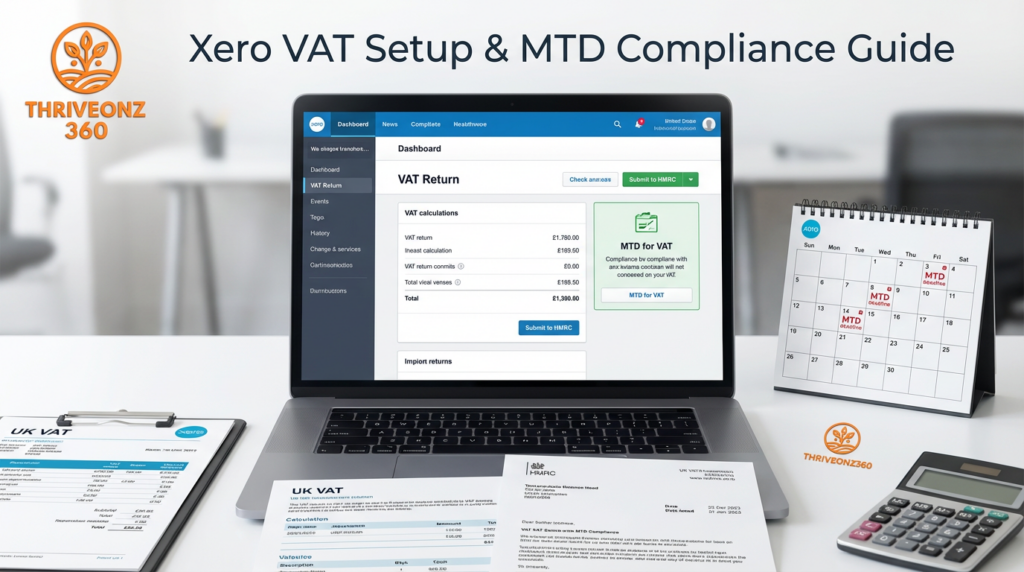
Last Updated on March 22, 2026 by James Hartley
🆕 ThriveOnz360 Exclusive: 90% off Xero for your first 6 months — only via ThriveOnz360. Claim this deal → xero.com (opens Xero direct) · No credit card required.
📋 You Have a VAT Number. You Have Xero. Now What?
The Average UK SME Spends 4–8 Hours Struggling Through This.
- You registered for VAT six months ago. HMRC sent your VAT number.
- Accountant said “you need Making Tax Digital-compliant software.” You signed up for Xero.
- Now you are staring at 47 settings menus, unsure which VAT scheme to select.
- Terrified you will configure something wrong and face HMRC penalties.
- Wrong VAT scheme = incorrect calculations for months. Missing HMRC connection = rejected MTD submissions and £200+ late filing penalties.
✅ This Guide. Every Screen. Every Click. Under 3 Hours.
Step 1 — Create and configure Xero account for UK business (30 min)
Step 2 — Select the correct VAT scheme for your business (20 min)
Step 3 — Connect Xero to HMRC for Making Tax Digital (15 min)
Step 4 — Set up UK bank feeds for automatic transaction import (30 min)
Step 5 — Configure VAT codes and categories (20 min)
Step 6 — Submit your first VAT return via MTD (30 min)
This is not an accounting knowledge problem. It is a configuration guidance problem.
📋 MTD for VAT — The Key Numbers
April 2022
MTD for VAT became mandatory for ALL VAT-registered businesses — not just those above the £85,000 threshold
£200
First late VAT return penalty. Up to £1,000+ for repeated late returns. Plus interest at ~7%/year on late payment.
<3 Hours
Total setup time with this guide — vs. 4–8 hours industry average. HMRC connection, bank feeds, VAT scheme, first return.
1M+ UK
UK businesses using Xero for MTD. HMRC-recognised since April 2019 (day one of MTD rollout). All five VAT schemes supported.
⚡ Quick Actions
- Start Xero UK Free Trial — 30 Days Free + 90% Off First 6 Months (ThriveOnz360 Exclusive) → — HMRC-recognised MTD software, all UK VAT schemes. No credit card required.
- Xero on ThriveOnz360 — Full Review + Member Pricing →
- Making Tax Digital for Small Business 2026: Complete Guide → — understand MTD obligations before configuring Xero
- Xero vs QuickBooks UK 2026 → — if you are still deciding on software
- Best Business Bank Account UK 2026 → — ensure your bank is Open Banking-compatible before connecting feeds
- UK Expense Management Stack 2026: Dext + Xero + Airwallex → — add receipt automation once Xero is configured
- Best Accounting Software UK 2026 → — full market comparison
Understanding Making Tax Digital (MTD) for VAT — What It Means and Why It Matters
What is MTD for VAT?
Making Tax Digital is HMRC’s initiative to digitise the UK tax system. For VAT, MTD has been mandatory since April 2019 for businesses above £85,000 and since April 2022 for all VAT-registered businesses regardless of turnover.
MTD requires you to:
- Keep digital VAT records (no paper-only records accepted)
- Use MTD-compatible software — Xero is HMRC-recognised
- Submit VAT returns directly from software to HMRC via API
- You cannot submit VAT returns manually via the HMRC portal (except in specific circumstances like insolvency)
Penalties for Non-Compliance
- First late return: £200 penalty
- Second late return in 12 months: £400 penalty
- Three or more late returns in 12 months: Up to £1,000 + daily penalties
- Late VAT payment: Interest charged daily at HMRC base rate + 2.5% (currently approximately 7%/year)
- Non-MTD submission: HMRC may reject your VAT return entirely if not submitted via MTD-compliant software
Setting up Xero correctly eliminates all of these risks. Xero has been HMRC-recognised MTD software since April 2019.
Before You Start — Information You Need (Gather This First)
⚠️ Gathering This Information Before Starting Reduces Setup Time from 4 Hours to 90 Minutes
Company Information
- ☐ Company legal name (exact, as registered with Companies House)
- ☐ Companies House registration number (8 digits)
- ☐ Business address (registered office or trading address)
- ☐ Company start date / incorporation date
- ☐ Financial year-end date (see Companies House confirmation statement)
VAT Information
- ☐ VAT registration number (9 digits, format: GB 123456789)
- ☐ VAT registration date (HMRC confirmation letter: “effective date of registration”)
- ☐ VAT scheme: Standard, Cash Accounting, Flat Rate, Annual, or Margin (covered below)
- ☐ VAT return period: quarterly or monthly (HMRC letter confirms)
HMRC Government Gateway
- ☐ Government Gateway user ID
- ☐ Government Gateway password
- ☐ Access to registered email or phone for 2FA codes
Banking and Accountant
- ☐ Business bank account details (for connecting bank feeds)
- ☐ Online banking login credentials (Open Banking connection)
- ☐ List of all business accounts and credit cards to connect
- ☐ Accountant’s email if inviting them with Advisor access
ThriveOnz360 Exclusive Deal
Xero UK — 30-Day Free Trial + 90% Off First 6 Months
Growth members also unlock: UK VAT Configuration Checklist (PDF, print-friendly), UK VAT Scheme Comparison Guide with decision matrix, 60-minute Xero VAT setup video walkthrough, VAT Reconciliation Template, and HMRC VAT Deadlines Calendar 2025–26 with Outlook/Google Calendar import.
ThriveOnz360 is an official Xero partner.
Step 1: Create Your Xero Account (15 Minutes)
1.1: Sign Up for Xero UK
ThriveOnz360 exclusive: use this link for 90% off your first 6 months → rather than going to xero.com directly — the discount is only applied via this link. Enter business email, first and last name, UK mobile number, create password → Click “Get Started” → Verify email (check inbox, click verification link).
No credit card required to start. On trial start screen: select region United Kingdom, organisation type (Limited Company or Sole Trader), company name, and business industry.
1.2: Choose Your Xero Plan
Xero shows three plans. For VAT-registered businesses: Growing (£32/month) is recommended — adds multi-currency and bulk reconciliation, which saves significant time for VAT businesses. The Early plan (£26/month after promo) handles VAT and MTD but has invoice limits.
Select your plan and click “Start Trial.” If you arrived via the ThriveOnz360 link, 90% off for 6 months is already applied — verify at checkout. You will not be charged during the 30-day trial period.
1.3: Enter Company Details — Four Critical Decisions
Legal Name
Enter exact company name as registered with Companies House. “Smith & Associates Limited” not “Smith Associates Ltd” — even minor differences can cause HMRC matching issues.
⚠️ Financial Year End — Critical
Xero auto-suggests 31 March. Change this to match your Companies House year-end. Cannot be changed after transactions are entered without your accountant’s help. Common UK year-ends: 31 March, 31 December, 30 April.
Companies House Number
Enter 8-digit number (format: 12345678). Find on your certificate of incorporation or confirmation statement. Sole traders: leave blank (not applicable).
VAT Registration
Select “Yes, I’m VAT Registered.” Enter VAT number (9 digits — no “GB” prefix in Xero) and VAT registration date from your HMRC confirmation letter (“effective date of registration”).
Step 2: Configure VAT Settings — The Most Critical Step (30 Minutes)
Choose the wrong VAT scheme and you will calculate VAT incorrectly for months. Take 10 minutes to understand your options before making this selection.
Standard VAT Accounting (Accrual)
Any VAT-registered business
VAT due when you issue an invoice (tax point = invoice date). You pay VAT to HMRC before the customer pays you — negative cash flow impact. Full VAT records required.
Best for: Businesses with strong cash flow, B2B businesses where customers pay within 30 days, businesses above the £1.35M turnover threshold.
Flat Rate Scheme
Businesses with turnover <£150,000
Charge customers standard 20% VAT. Pay HMRC a fixed percentage based on industry. Keep the difference. Cannot reclaim VAT on purchases (except capital assets over £2,000). First-year discount: reduce percentage by 1%.
Best for: Low-expense businesses (consultants, freelancers where expenses are under 20% of turnover). Find your rate at gov.uk/vat-flat-rate-scheme/vat-flat-rates.
Cash Accounting Scheme
Businesses with turnover <£1.35M
VAT due when the customer pays you (tax point = payment received date). You pay VAT only after being paid — positive cash flow benefit. VAT reclaimable when you pay the supplier.
Best for: B2C businesses, businesses with long payment terms (60–90 days), startups with tight cash flow.
Annual Accounting Scheme
Businesses with turnover <£1.35M
One VAT return per year instead of quarterly. Pay via nine monthly or three quarterly advance payments (estimate), then a final balance with the annual return. Significantly simpler admin.
Best for: Businesses with stable, predictable turnover who want to minimise admin. One return per year vs. four.
2.2: Configure VAT Scheme in Xero — Where to Find the Setting
Navigation: Xero dashboard → Settings (gear icon) → General Settings → Financial Settings → Scroll to “GST/Tax Settings” → Click “Edit”
2.3: VAT Codes — Xero Creates These Automatically
Xero automatically creates standard UK VAT codes when you select UK VAT. Navigate to Settings → General Settings → Tax Rates to verify. You should see: 20% VAT on Income, 20% VAT on Expenses, 5% Reduced Rate, 0% Zero Rated, Exempt, and Out of Scope.
Most businesses only use 20% on Income and 20% on Expenses. Xero applies these automatically. On Flat Rate Scheme: Xero charges customers 20% but calculates your HMRC payment using your flat rate percentage, and correctly blocks VAT reclaim on expenses — all automatic.
Step 3: Connect Xero to HMRC for Making Tax Digital (20 Minutes)
This connection allows Xero to submit VAT returns directly to HMRC via the MTD API. Without this, you cannot file VAT returns compliantly.
3.1–3.2: Initiate Connection and HMRC Login
Navigation: Xero dashboard → Accounting → Reports → Scroll to VAT section → Click “VAT Return” → Click “Connect to HMRC.”
Xero redirects to HMRC’s website (verify you are on a gov.uk domain for security). Enter Government Gateway user ID and password. HMRC sends a 2FA access code to your registered email or mobile — enter the code and click “Continue.”
3.3–3.4: Grant Permissions and Verify
HMRC displays permissions screen: Xero is requesting authority to view your VAT information, submit VAT returns on your behalf, view VAT liabilities, and view VAT payments. Review and click “Grant Authority.”
HMRC redirects back to Xero. Verify the connection: Settings → General Settings → Financial Settings → Making Tax Digital for VAT. Status should show Connected, your 9-digit VAT number, and your next VAT return due date.
If Connection Fails — Three Most Common Causes
Not on Xero yet? You can follow this guide as a setup checklist and start your trial when ready. ThriveOnz360’s exclusive link gives you 90% off for your first 6 months → No credit card required.
Step 4: Set Up UK Bank Feeds (30 Minutes)
Bank feeds automatically import transactions from your UK business bank account into Xero daily — eliminating manual data entry and ensuring VAT return accuracy.
UK Banks Supported via Open Banking (FCA-Regulated)
Barclays Business Banking · Lloyds Bank · NatWest / RBS · HSBC UK · Santander UK · TSB · Bank of Scotland · Nationwide (business) · Monzo Business · Starling Bank · Tide Business Banking · Revolut Business · First Direct · Metro Bank · Airwallex
Connection is read-only: Xero can view and import transactions but cannot move money or make payments from your account. Best bank for Xero integration: see our bank guide.
4.1–4.2: Add and Connect Your Bank
Navigation: Accounting → Bank Accounts → “Add Bank Account” → “Connect to your bank via bank feeds” → Search for your bank by name → Select from list.
Xero redirects to your bank’s website. Enter your banking credentials, select your business current account when prompted. Do not select personal accounts. Click “Authorise” or “Approve.” Bank redirects back to Xero. See also: Xero Bank Reconciliation UK 2026
4.3: Opening Balance — A Critical Decision
Xero asks for an opening balance and date. Best practice: use the balance as of the start of your current VAT quarter (1 Feb, 1 May, 1 Aug, or 1 Nov) — this ensures all quarter transactions are in Xero for an accurate VAT return.
Get the exact balance from your bank statement on that date. If starting mid-quarter, select “Import 90 days” to capture transactions back to the quarter start.
4.4: Connecting Additional Accounts
Repeat the bank connection process for: business savings accounts, business credit cards, secondary current accounts, and any Airwallex or Wise multi-currency accounts used for business. Each account gets its own connection, opening balance, and reconciliation queue. Bank feeds update daily — typically overnight.
Step 5: Configure VAT Transaction Codes (15 Minutes)
Default VAT on Sales
Navigation: Settings → General Settings → Invoice Settings → Default Tax Rate (Sales) → Select 20% (VAT on Income) → Save.
This means every new invoice defaults to 20% VAT. If you sell a mix of standard-rated, zero-rated, and exempt goods, set the default to your most common rate and manually change individual invoice lines as needed.
Default VAT on Purchases
Navigation: Settings → General Settings → Financial Settings → Default Tax Rate (Purchases) → Select 20% (VAT on Expenses) → Save.
Every bill or expense defaults to 20% reclaimable VAT. Change individual transactions as needed when supplier receipts show no VAT, reduced rate (5%), or zero-rated. For automated receipt capture, see: Dext solution page.
Step 6: Reconcile Transactions — Before Your First VAT Return (30 Minutes)
How to Access and Reconcile
Navigation: Accounting → Bank Accounts → Click account name. You see a list of imported transactions with a “Reconcile” button for unmatched transactions.
Click “Reconcile” on each transaction. Xero offers four options: Create Bill (paid a supplier), Create Expense (one-off purchases), Match to Existing (bill/invoice already in Xero), or Transfer (moving between your own accounts). Select the most appropriate option, verify the VAT code, and click “Reconcile.” Tip: automate receipt categorisation with Dext + Xero.
Categorising Expenses and VAT — Two Key Checks
When creating an expense: check the Category (select from your chart of accounts) and verify the VAT code. Does the supplier receipt actually show VAT? If yes, leave at 20%. If the receipt shows no VAT, change to “No VAT.”
Attach receipt (recommended): Photo receipt with Xero mobile app or drag-and-drop PDF. HMRC requires receipts for 6 years — Xero stores them permanently against the transaction. After 2–3 weeks of reconciling, Xero learns your patterns and auto-suggests matches, reducing reconciliation from 30 minutes to 10 minutes per week.
Step 7: Prepare and Submit Your First VAT Return (20 Minutes)
The Nine VAT Return Boxes — What to Verify
Box 1 — VAT due on sales: verify against sales invoices issued in the quarter
Box 2 — VAT on EU acquisitions: usually £0 post-Brexit (unless Northern Ireland)
Box 3 — Total VAT due (Box 1 + Box 2): auto-calculated
Box 4 — VAT reclaimed on purchases: verify all supplier invoices with VAT are included
Box 5 — Net VAT (Box 3 minus Box 4): positive = you owe HMRC; negative = HMRC owes you a refund
Box 6 — Total sales (excluding VAT): verify against invoices issued
Box 7 — Total purchases (excluding VAT): verify against bills recorded
Boxes 8 and 9 — EU goods: usually £0 post-Brexit
Four Common Errors on First VAT Return
Wrong VAT scheme: If on Flat Rate, verify Settings → Financial Settings shows your flat rate percentage — not 20%.
Personal expenses included: Find transaction → Change to “Personal Expense” (non-reclaimable VAT).
Missing transactions: Record all bills, reconcile to bank feed or mark “Awaiting Payment” before submitting.
Wrong VAT code: Supplier receipt shows no VAT but Xero has 20%. Find transaction, edit, change to “No VAT.”
Run VAT Audit before submitting: On VAT Return screen → Click “VAT Audit” → Every transaction in the return listed — review for errors, duplicates, and wrong VAT codes.
Submitting to HMRC
Navigation: Accounting → Reports → VAT Return → Review all boxes → Click “File with HMRC” (green button).
Xero shows a confirmation screen: review amounts one final time (once filed, cannot be changed). Click “File Return.” Xero communicates with HMRC via MTD API — takes 10–30 seconds. Success message appears with a 15-digit HMRC submission receipt number. Screenshot or record this number as your HMRC reference for this return.
Paying VAT to HMRC
Payment deadline: 1 month and 7 days after VAT quarter end (e.g., quarter ends 31 January → payment due 7 March).
Recommended — Direct Debit: Set up with HMRC. Never late, never forgotten. HMRC takes payment 3 working days after deadline automatically.
Online Banking: Pay via Faster Payment. Sort code: 08-32-10. Account number: 12001039. Account name: HMRC VAT. Reference: your 9-digit VAT number (no spaces). When payment appears on Xero bank feed, match to “VAT Liability” account to clear the balance sheet liability.
Ongoing VAT Management — The Quarterly Routine
Last Day of Quarter
- ☐ All sales invoices for quarter recorded in Xero
- ☐ All supplier bills and expenses recorded
- ☐ All bank transactions reconciled
First Week After Quarter
- ☐ Review draft VAT return in Xero
- ☐ Run VAT Audit report, check for errors
- ☐ Fix errors (wrong VAT codes, missing transactions)
- ☐ Submit VAT return to HMRC via Xero (before deadline)
Payment Deadline
- ☐ Pay VAT to HMRC (direct debit or online banking)
- ☐ Reconcile payment in Xero when it appears on bank feed
- ☐ VAT liability cleared on balance sheet
Monthly habit: reconcile bank accounts monthly — reduces VAT return prep from 4 hours to 30 minutes and catches errors while they are easy to fix.
Standard VAT Quarter End Dates
31 January / 30 April / 31 July / 31 October. Your VAT return deadline is 1 month and 7 days after each quarter end. Set calendar reminders 2 weeks before each deadline. Enable Xero’s built-in reminder: Settings → Reminders → Enable VAT return reminders 7 days before deadline.
Troubleshooting — Common Issues and Fixes
HMRC Connection Fails
Symptoms: “Could not connect to HMRC” or “MTD connection expired” when filing. HMRC authorisations require renewal every 18 months.
Fix: Settings → Financial Settings → Making Tax Digital → “Reconnect to HMRC” → Re-enter Government Gateway credentials → Re-authorise. If still failing: call HMRC VAT helpline (0300 200 3700).
VAT Return Amounts Look Wrong
Symptoms: Box 1 much higher or lower than expected. Box 4 suspiciously high.
Fix: Run VAT Audit report → Review every transaction line by line → Look for: No VAT transactions marked 20%, duplicate entries, personal expenses included → Correct errors and the VAT return recalculates automatically.
Bank Feed Stops Updating
Symptoms: Transactions stop appearing. “Last updated” date is more than 3 days ago. Open Banking authorisations typically expire after 90 days.
Fix: Accounting → Bank Accounts → Click account name → “Manage Feed” or “Reconnect Bank” → Log in to bank again → Re-authorise Xero. Wait 24 hours for feed to resume.
Cash Accounting VAT Timing Confusion
Symptoms: Invoice issued in January but VAT not on Q1 return. Customer paid in February and VAT appears on Q2 return instead.
This is correct behaviour for Cash Accounting. Tax point is payment received, not invoice date. If you want VAT on invoice date: switch to Standard Accrual accounting in Settings → Financial Settings → VAT Scheme. Warning: cannot switch mid-quarter.
Frequently Asked Questions
Q: Can I switch VAT schemes after setting up Xero?
Yes, with restrictions. HMRC rules: cannot switch mid-VAT-quarter; some schemes have waiting periods (e.g., must be on Flat Rate for 1 year before leaving); turnover limits apply (must leave Flat Rate if turnover exceeds £230,000). Process: notify HMRC by calling 0300 200 3700, get confirmed effective date (usually start of next quarter), then in Xero: Settings → Financial Settings → VAT Scheme → Change scheme → Select effective date. See the full MTD guide for 2026 for scheme change rules.
Q: What if I forget to submit a VAT return on time?
Submit immediately via Xero — late submission is far better than no submission. Pay VAT owed at the same time to reduce interest charges. Call HMRC VAT helpline (0300 200 3700) and explain the situation; first-time lateness may be forgiven if you have a reasonable excuse. Prevention: set Xero email reminders (Settings → Reminders → VAT return reminders 7 days before deadline).
Q: Can I reclaim VAT on purchases made before VAT registration?
Yes, with limits. Goods: can reclaim VAT on goods purchased up to 4 years before VAT registration, if you still have the goods. Services: can reclaim VAT on services received up to 6 months before registration. In Xero: record pre-registration purchases as bills using the original supplier invoice dates, mark as paid, and VAT will be included in your first VAT return Box 4. HMRC may audit pre-registration claims — keep original supplier invoices as evidence.
Q: What if a customer doesn’t pay a VAT invoice?
Bad Debt Relief allows you to reclaim VAT on unpaid invoices after 6 months. Rules: invoice must be over 6 months overdue, you must have written off the debt in your accounts, and you must have made reasonable attempts to collect. In Xero: Invoice → Options → “Write Off” → Xero creates a bad debt relief journal entry → VAT is reclaimed on the next VAT return (reduces Box 1).
Q: Can my accountant access Xero for free?
Yes. Accountants using Xero HQ (the accountant platform) access client files for free. To invite: Settings → Users → Invite User → Enter accountant’s email → Select role: Advisor (free, unlimited access). Your accountant can then view all transactions and reports, make adjustments, prepare and review VAT returns, and submit returns on your behalf if authorised — at no cost to you or your accountant.
Q: What monthly reports should I review?
Five essential monthly reports (15–20 minutes total): Profit & Loss; Balance Sheet (verify bank balances match reality); Aged Receivables (chase overdue customer invoices over 30 days); Aged Payables (ensure supplier bills paid on time); and Draft VAT Return (review mid-quarter to catch errors before quarter-end). For deeper reporting guidance, see: Xero full review.
Final Checklist — Is Your Xero VAT Setup Complete?
When all checked: your Xero VAT setup is complete. You are MTD-compliant and ready for ongoing quarterly VAT management.
ThriveOnz360 Exclusive Deal
Xero UK — 30-Day Free Trial + 90% Off First 6 Months
Growth members unlock six Xero VAT setup resources: full configuration checklist (PDF, print-friendly), UK VAT Scheme Comparison Guide with decision matrix, 60-minute Xero setup video walkthrough (UK-specific, screen recording), VAT Reconciliation Template, HMRC VAT Deadlines Calendar 2025–26 with Outlook/Google Calendar import. Free to join, no credit card.
ThriveOnz360 is a Xero affiliate partner.
Related Articles
Xero & UK Accounting
- Xero UK — Full Review + ThriveOnz360 Member Pricing →
- Making Tax Digital for Small Business 2026: Complete Guide →
- Xero vs QuickBooks vs FreshBooks UK 2026 →
- Xero vs FreeAgent UK 2026 →
- Best Accounting Software UK 2026: Top 10 for SMEs →
- How to Do Payroll in Xero UK 2026 →
- Xero Bank Reconciliation UK 2026 →
Automation & Business Banking
- UK Expense Management Stack 2026: Dext + Xero + Airwallex →
- Dext + Xero + Airwallex: Complete Expense Automation →
- Dext — Receipt Capture & Expense Automation →
- Airwallex — Multi-Currency Business Banking →
- Best Business Bank Account UK 2026 →
- LTD vs LLP vs Sole Trader UK 2026 →
- Complete UK Tech Stack for SMEs 2026 →
- Dext Review UK 2026 →
🔎 Not sure if Xero is the right accounting software for your UK business? Take the 60-second Tool Finder → thriveonz360.com/tool-finder/
Last updated: April 2026. MTD for VAT: mandatory for all VAT-registered UK businesses since April 2022 under Finance Act 2021. HMRC-approved MTD software: Xero recognised since April 2019. Late VAT return penalties: £200 first offence, escalating to £1,000+ under Finance Act 2021 penalty regime. VAT registration threshold: £90,000 taxable turnover in rolling 12 months (from April 2024). Cash Accounting Scheme eligibility: taxable turnover under £1.35M. Flat Rate Scheme eligibility: taxable turnover under £150,000. Open Banking: FCA-regulated under Payment Services Regulations 2017. Bank connection authorisations typically expire after 90 days — re-authorisation required. HMRC VAT payment bank details correct as of April 2026 — verify at gov.uk before making payment. HMRC VAT helpline: 0300 200 3700. Xero pricing as of April 2026 — verify current pricing at xero.com/uk. This article provides general information only and does not constitute tax, legal, or accounting advice. Consult a qualified accountant before making decisions about VAT schemes or filing obligations.

Former City of London fintech advisor and SME growth strategist with 12 years building lean tech stacks for founders across the UK and Southeast Asia. James has guided 500+ SMEs through software decisions that cut costs and unlock growth — and believes every founder deserves a trusted, independent voice on their side. Every review published on ThriveOnz360 follows the platform’s Editorial Standards — tools are independently assessed against UK-specific criteria including HMRC compliance, GBP pricing, FCA registration, and IR35 implications.